2011年2月23日星期三

How to Rip Blu-Ray DVD and Common DVD with Only One Ripper?

So, with the growth in living standard, people give more attention on relaxing themselves on spare time. Now the blu-ray movie is a nice choice. But you can not bring your DVD player with you anywhere, so put the movie on your PMP or Laptop is the best choice.

What is Blu-Ray DVD?
Blu-ray Disc (BD), sometimes called "Blu-ray," is an optical disc storage medium designed to supersede the standard DVD format. Its main uses are for storing high-definition video, PlayStation 3 video games, and other data, with up to 25 GB per single layered, and 50 GB per dual layered disc. The disc has the same physical dimensions as standard DVDs and CDs.

What is the different between the DVD and Blu-Ray DVD?
To be simple, Blu-Ray DVD uses a blue-violet laser as opposed to the red laser used on DVDs and it can hold a lot more information on them than DVDs, 25GB (single-layer)/50GB (dual-layer) but DVD and only take 4.7GB (single-layer)/8.5GB (dual-layer).
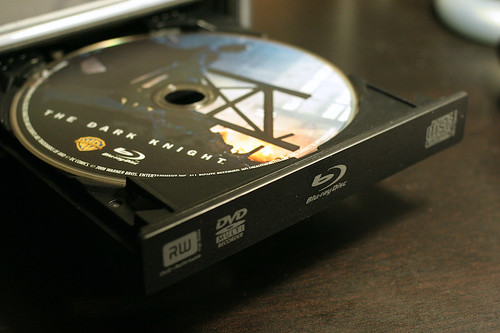

The images on blu-ray disc are sharper, brighter, and more detailed than any DVD movie. What manufacturers are trying to do is make the movie look as close to what you see in a real theater as possible, except for its a tenth the size and in your home.

Blu-Ray DVD is really nice but you have to play it on Blu-Ray player, do not worry, it can also play all your DVD movies smoothly.

Part 1: How to Rip Blu-Ray DVD to Video Format?

Tools you need:
1. AnyDVD- You can use the Trail Version. Get it here:
http://static.slysoft.com/SetupAnyDVD.exe
2. Blu-Ray DVD Driver
3. Blu Ray Ripper
Preparation:
You need to install AnyDVD, then run this Blu Ray Ripper
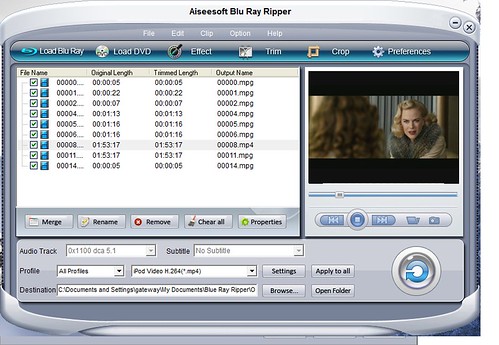


Step 1: Load your BD
Load your BD disc in to your blu-ray driver.
Step 2: Output Profile
Choose your output profile from the drop-down list according to your need. You choose output format as your devices and also with specific video format.
You can also set the specific settings of your output video, such as “resolution” “video bitrate” “encoder” and so on.

After you have done all the tings above, you need to click the start button to convert your blu-ray disc.

Tips:
You can also do many video editing works about your output video.

1. Effect:
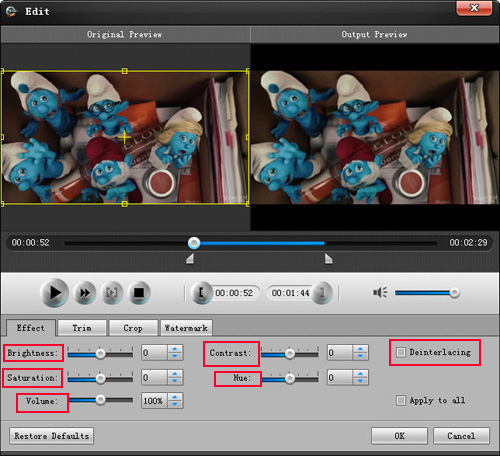
You can adjust the “Brightness”, “Contrast”, “Saturation” of your output video and also you can select to use the “deinterlacing” function which make your video more enjoyable.
2. Trim
To pick up any part of your BD movie to converter, you can use “Trim” function.
3. Crop
You can choose any play area to convert by using the Crop function.
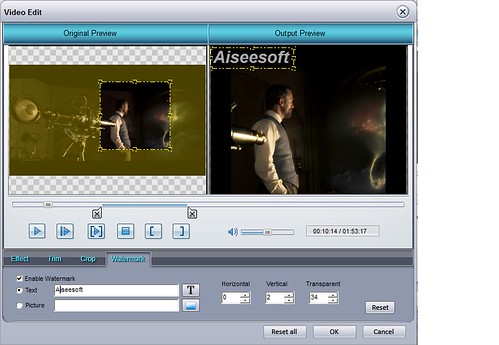
4. Watermark
You can add your own watermark on the output video, the watermark can be words and also picture. You can choose the font of your words and other really enjoyable function

Part 2: How to Rip Standard DVD to Video Format?
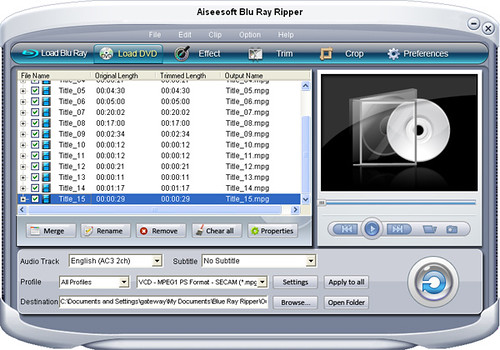

Step 1: Load your DVD
Put your DVD to your DVD Driver

Step 2: Choose your output profile
Choose your output video format according to your need.

Step 3: Video effects
You can do many video editing works with this really nice dvd ripping software. Such as trim, crop, merge and also you can add water mark to your output video.

Step 4: Conversion
Click the “Start” button to begin to rip your DVD.

2011年2月22日星期二

How to Save A Video to wmv Format

As many popular media players, such as PSP, Zune, Xbox, and Pocket PC, can paly WMV file, it become more and more popular nowadays. However, not all the available videos are WMV file, so we need to convert them. This guide aims to show you how to convert videos to WMV file on Windows.

To convert videos to WMV file you need Aiseesoft
WMV Converter
.

Step 1: Load Video
You can easily load your video by clicking “Add File” and find the video that you want to convert to WMV format.


Step 2: Output Profile and Settings
This powerful WMV converter provides you many profiles according to what devices you have or you just need the general WMV video.
Click “Profile” drop-down list and choose one output profile according to your need.
You can also specify the settings of the output video: you can adjust the video/audio encoder/Bitrate; Channel; Frame Rate; and Resolution.

Step 3: Video Editing and Conversion
Before you start your conversion you can editing your video with this powerful video converter.
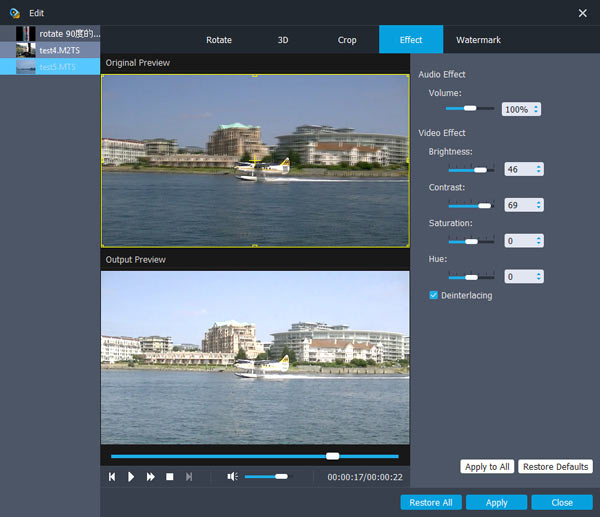
1. Effect:
You can adjust the “Brightness”, “Contrast” and “Saturation” of your output video by dragging the bar on each of the section.
You are also allowed to use “deinterlacing” function to improve your effect of your output video.


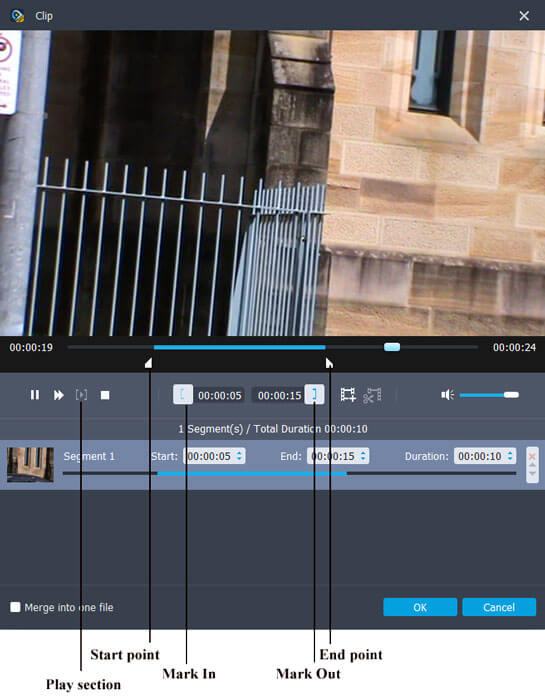
2. Trim:
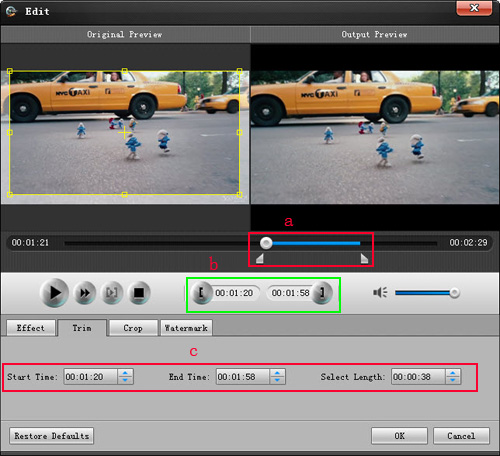
Using trim function you can remove the part that you don't want to convert and pick up any part of the video to convert.
Three ways to do that:
a. You can drag the buttons to set the start and end time
b. You can preview the video first and when you want to start trim click the left one of the pair buttons when you want to end click the right one.
c. You can set the exact start and end time at the buttom of the pop-up window.


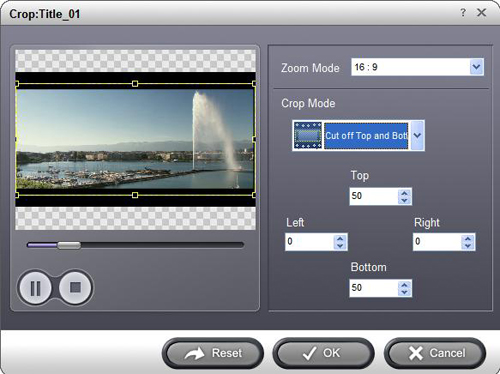
3. Crop:
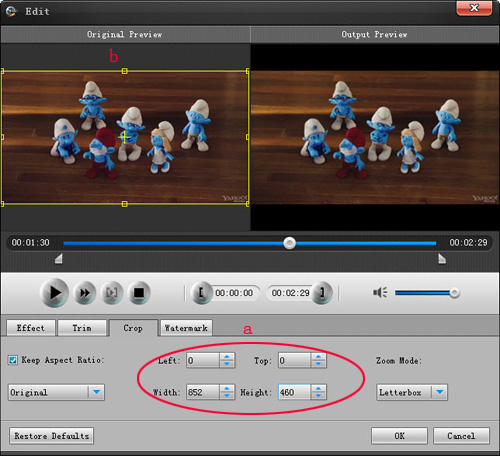
Crop function allows you to choose any play area to convert.
Two ways to do that:
a. You can set your own mode on the bottom of the pop-up window
b. You can drag frame to set your own crop mode


After editing your output video, you can click “Start” to begin your conversion.
If you don't want to edit your video, you can directly start your conversion.

2011年2月20日星期日

How to Rip Blu-Ray DVD to iPad Format?

Blu-ray DVD is more and more popular among us since the images on Blu-ray disc are sharper, brighter, and more detailed than any DVD movie. What manufacturers are trying to do is to make the movie look as close to what you see in a real theater as possible.
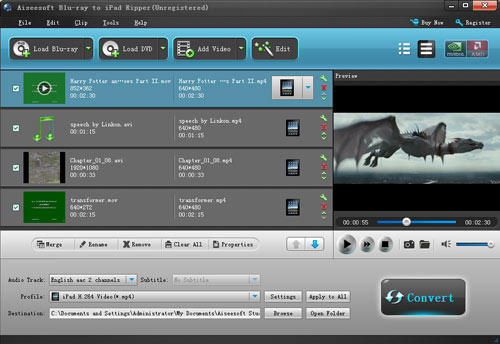
It is a great choice to put Blu-ray DVD to iPad/iPhone/iPad. Aiseesoft Blu-Ray to iPad Ripper is the professional software that can rip Blu-ray DVD, common DVD and convert video to iPad/iPhone/iPod with good output quality, easily and fast.
How to Rip Blu-Ray DVD to iPad Format?

Tools you need:
1. Blu-Ray DVD Driver
2.Blu Ray to iPad Ripper
Preparation:
You need install and run this Blu-Ray to iPad Ripper


Step 1: Load your BD
Load your BD disc in to your Blu-ray driver.
Step 2: Output Profile
Choose your output profile from the drop-down list according to your need. You choose output format as your devices and also with specific video format.
You can also set the specific settings of your output video, such as “resolution” “video bitrates” “encoder” and so on.

After you have done all the tings above, you need to click the start button to convert your Blu-ray disc.

Tips:
You can also do many video editing works about your output video.


1. Effect:
You can adjust the “Brightness”, “Contrast”, “Saturation” of your output video and also you can select to use the “deinterlacing” function which make your video more enjoyable.
2. Trim
To pick up any part of your BD movie to converter, you can use “Trim” function.
3. Crop
You can choose any play area to convert by using the Crop function.
4. Watermark
You can add your own watermark on the output video, the watermark can be words and also picture. You can choose the font of your words and other really enjoyable function.

2011年2月19日星期六

How to put DVD on iPod

How to put DVD on iPod? Put DVD movies on iPod? With this DVD to iPod ripper - Aiseesoft DVD to iPod Converter, you can easily achieve the purpose of put DVD on iPod. Aiseesoft DVD to iPod Converter can not only put DVD to iPod, but also can put encrypted DVD movie to iPod. Free download it now and have a try. It is an excellent and professional DVD to iPod ripper tool for putting DVD on iPod. You can easily put DVD on iPod and enjoy movies on your iPod.


This step by step guide will show you how to use Aiseesoft DVD to iPod Converter to put DVD on iPod.

Instruction: Install and run Aiseesoft DVD to iPod Converter

Aiseesoft DVD to iPod Converter

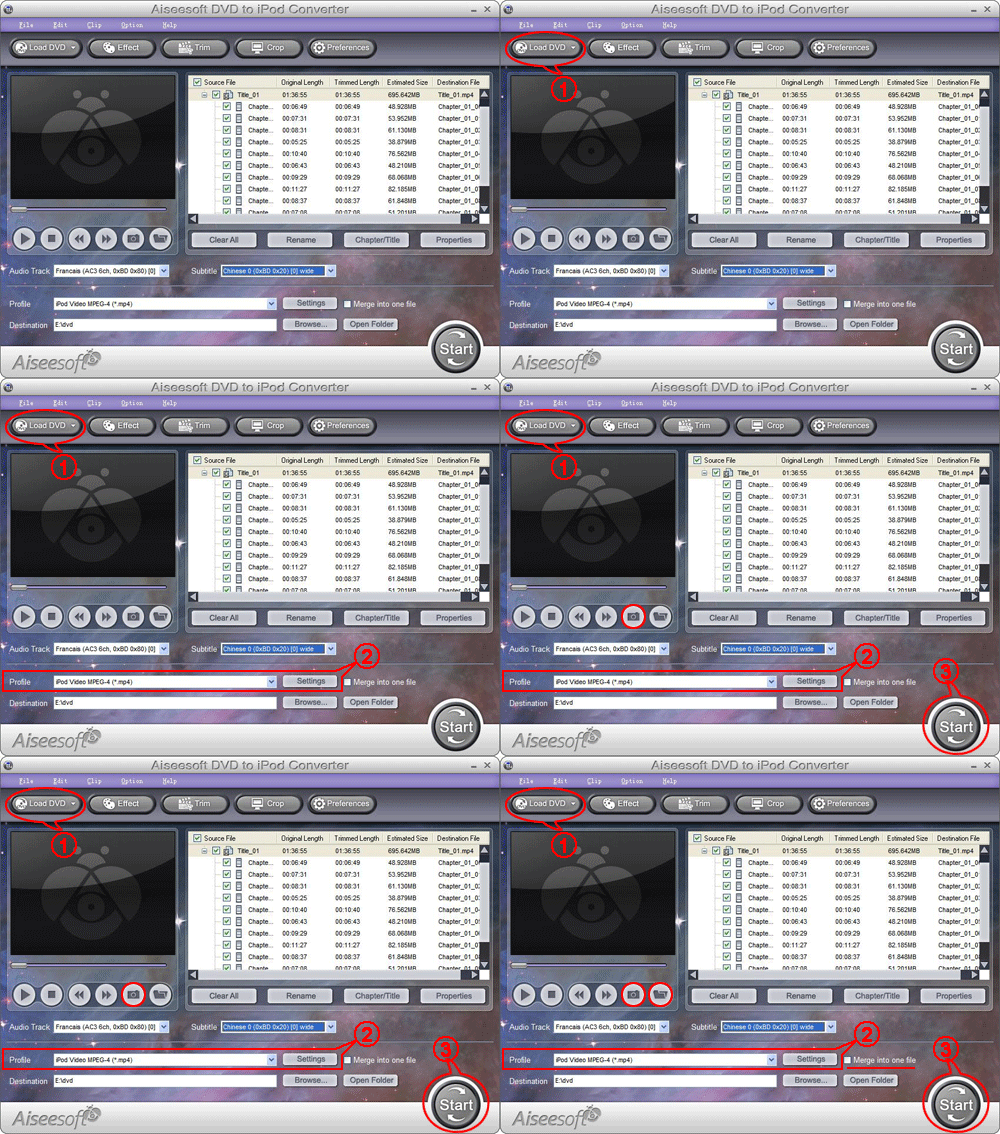
Step 1: Import DVD
Place the DVD into your DVD drive and click the “Load DVD” button to load DVD.

Step 2: Video settings
Select the output video format you need from the “Profile” drop-down list. Click “Settings” button to set your video and audio parameters.


Step 3: Start Conversion
Click “Start” button to start your conversion and it will be finished in a short while.

Tips:
1: You can also select Audio Track and Subtitle from their respectively drop-down list.
2: If you like the current image of the video you can use the “Snapshot” opinion. Just click the “Snapshot” button the image will be saved and you can click the “File” next to “Snapshot” button to open your picture. You can select the destination of the picture by clicking the “Preference” button. As default the captured image will be saved at: your \My Documents\Aiseesoft Studio\Snapshot
3: If you want to merge the selected titles of chapters into one output file you can check the “merge into one file” option. As default the merged file is named after the first selected file (either a title or a chapter)

More tips:

1: Trim Movie
If you just want to convert a clip from your DVD movie, you can click the “Trim” button to open the Trim dialog, you can trim a duration of the selected title or chapter by either dragging the Start Time and End Time sliders or setting the time parameters in each corresponding field.

After you set the trimming time, the length of the captured clip will be shown in the Select Length box for your reference.


2. Movie Effect
If you want to change the original video effect, you can click the Effect icon to set the video brightness, contrast, saturation, etc. You can also set the special effect for your movie to cater to your need.


3. Video Crop
With Aiseesoft DVD to iPod Converter you can remove the black edges around your movie video by checking the “Crop” option and customize your movie.


There are three methods available to crop your video:
Method 1: Crop by selecting a crop mode
Select a crop mode in the crop mode drop-down list and click OK to save the crop. There are three pre-set crop modes
for your choice: No Crop, Cut off top and bottom black edges, Cut off top black edge.
Method 2: Crop by adjusting the crop frame
The crop frame is the dashed line around the movie video. There are four adjustment lines on the crop frame. Each line allows you to crop the movie video from a different position.
To crop your movie video, you can just move your mouse cursor to an adjustment box and drag the crop frame.
Method 3: Crop by setting the crop values
There are four crop values on the lower left part of the crop window: Up, Down, Left and right. You can set each value to crop your movie video, and the crop frame will move accordingly.


Before you start to crop your movie video, you can select an output aspect ratio from the Zoom list. There are four choices available: Full screen, Keep original, 16:9 and 4:3. After you select an output aspect ratio and finish the crop, the result can be previewed in the Preview window of the program main interface.

2011年2月18日星期五

How to Rip Blu-Ray DVD and Common DVD with Only One Ripper

So, with the growth in living standard, people pay more attention on relaxing themselves on spare time. Now the Blu-ray movie is a nice choice. But you cannot bring your DVD player with you anywhere, so put the movie on your PMP or Laptop or iPad is the best choice.

What is Blu-Ray DVD?
Blu-ray Disc (BD), sometimes called "Blu-ray," is an optical disc storage medium designed to supersede the standard DVD format. Its main uses are for storing high-definition video, PlayStation 3 video games, and other data, with up to 25 GB per single layered, and 50 GB per dual layered disc. The disc has the same physical dimensions as standard DVDs and CDs.


What is the different between the DVD and Blu-Ray DVD?
To be simple, Blu-Ray DVD uses a blue-violet laser as opposed to the red laser used on DVDs and it can hold a lot more information on them than DVDs, 25GB (single-layer)/50GB (dual-layer) but DVD and only take 4.7GB (single-layer)/8.5GB (dual-layer).


The images on blu-ray disc are sharper, brighter, and more detailed than any DVD movie. What manufacturers are trying to do is to make the movie look as close to what you see in a real theater as possible, except for its a tenth the size and in your home. Blu-Ray DVD is really nice but you have to play it on Blu-Ray player.

Part 1: How to Rip Blu-Ray DVD to Video Format?

Tools you need:

1. Blu-Ray DVD Driver
2.Blu Ray Ripper
Preparation:
You need install and run this Blu Ray Ripper


Step 1: Load your BD
Load your BD disc in to your blu-ray driver.
Step 2: Output Profile
Choose your output profile from the drop-down list according to your need. You choose output format as your devices and also with specific video format.
You can also set the specific settings of your output video, such as “resolution” “video bitrates” “encoder” and so on.

After you have done all the tings above, you need to click the start button to convert your blu-ray disc.

Tips:
You can also do many video editing works about your output video.


1. Effect:
You can adjust the “Brightness”, “Contrast”, “Saturation” of your output video and also you can select to use the “deinterlacing” function which make your video more enjoyable.
2. Trim
To pick up any part of your BD movie to converter, you can use “Trim” function.
3. Crop
You can choose any play area to convert by using the Crop function.
4. Watermark
You can add your own watermark on the output video, the watermark can be words and also picture. You can choose the font of your words and other really enjoyable function

Part 2: How to Rip Standard DVD to Video Format?


Step 1: Load your DVD
Put your DVD to your DVD Driver

Step 2: Choose your output profile
Choose your output video format according to your need.

Step 3: Video effects
You can do many video editing works with this really nice dvd ripping software. Such as trim, crop, merge and also you can add water mark to your output video.

Step 4: Conversion
Click the “Start” button to begin to rip your DVD.
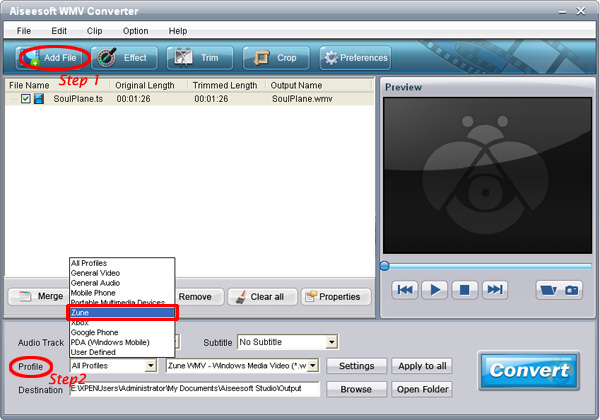
Note:If you have want to put blu-ray DVD movies on your iPad, you can use Aiseesoft Blu-Ray to iPad Ripper. It can rip Blu-ray DVD movies to MPEG-4, H.264/MPEG-4 AVC, MOV and M4v, etc. for iPad.

2011年2月17日星期四

How to convert video to AVI, MPEG, WMV, FLV, MOV, MP4, VOB, MP3, etc?

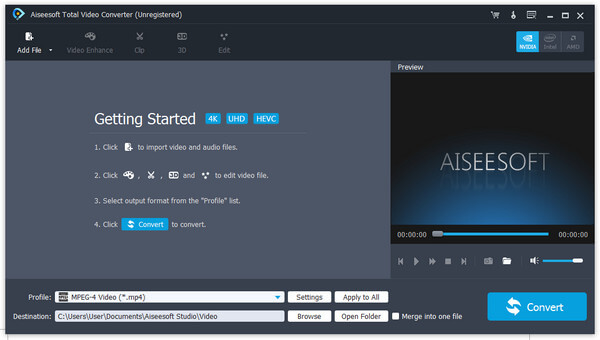
Free download this Aiseesoft Total Video Converter first, install it and start operation; Tips: Click the button of "Add File" to load video files or you can also load the files by clicking the "Files ﹥Add files" on the toolbar.

Step 1: Choose the output format

Choose your file, and click the "Profile" drop-down menu and choose the output format as you.

Step 2: Define destination folder

Click the "Browse" button to define the file folder to put the output video file.

Tips: If you want to complete the conversion by default settings, just click the "Start" button to convert, which is the easiest way to finish the whole converting process.

Step3. Select the setting

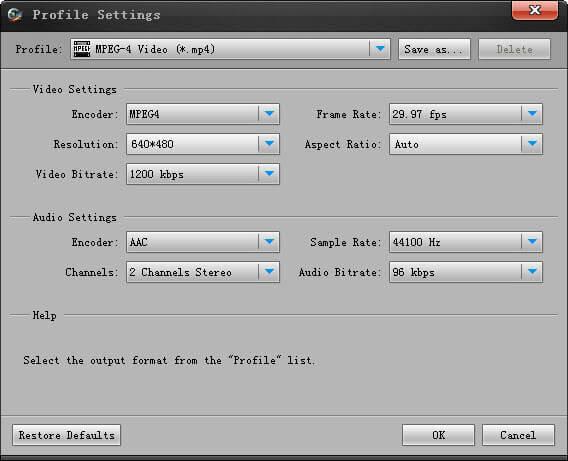
Click the "settings" button to open the settings' window and set output files such as output format and set the video parameters (such as resolution, frame bite, encoder, and bit rate) or audio parameters (such as sample rate, channel, encoder and bit rate, etc.

2011年2月14日星期一

How to convert M2TS video?

M2TS converter

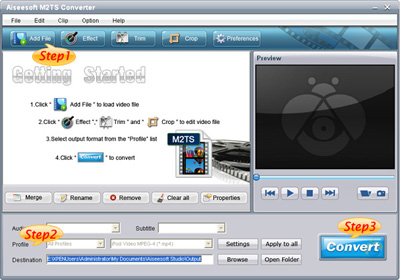
Step 1: Add File
Load your M2TS video.

Step 2: Choose Profile and Settings
Select your output profile according your need and adjust the settings of your output video if you like.
(the default setting works well)

Step 3: Start Conversion
Click "Start" to begin your conversion.

Here I also recommend you a really nice HD Video Converter, which can convert HD TS, HD MTS, HD M2TS, HD MPEG, HD WMV, HD MPG, HD MP4, QuickTime HD MOV, HD H.264, HD RM video, etc

2011年2月13日星期日

How to rip DVD to iPod/iPhone/Sansa/PSP/Zune and other MP4 and MP3 Players

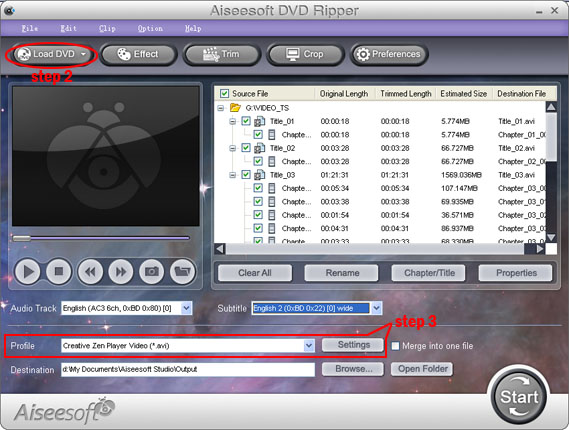
Step 1. Click “DVD Ripper” on the main interface to run Aiseesoft DVD Ripper.


Step 2. Open your DVD Drive and put your DVD in it, then click “Load DVD” and choose “Load DVD” to load your DVD into this best DVD ripper.

Step 3. Choose your output format from the “profile” drop-down list. This best DVD ripper provides you so many formats that out of your expectation, such as “iPod video MPEG 4 (*.mp4)”, “iPhone 3G MOV 640*480 (*.mov)” and so on.

After you choose your output format, you can adjust your output video’s settings, such as “Resolution”, “Frame Rate”, “Bitrate”, “Sample Rate” and so on.
Click “Start” now to begin your conversion and you will get your video soon.

To make your output movie more enjoyable you can do some editings to it through this best DVD ripper. You can choose a part of your movie to convert (trim), remove the black edges of your DVD movie (crop) and also adjust the effect (effect) and select subtitle and audio track.

2011年2月10日星期四

The Guide Shows How to Make iPhone Ringtone

Aiseesoft iPhone Ringtone Maker helps you to make ringtone for iPhone from your own video and audio sources.

The process is really simple, you only have to choose the files you want to convert, pre-listen the desired segment and select the folder where you want them to be stored.

Let’s see the steps together one by one!


How to Make iPhone Ringtone:

Step 1 Fire up Aiseesoft iPhone Ringtone Maker by double-clicking icon on your PC.


Step 2 Find the source you'd like to turn into a ringtone.
Click Browse on the right side of Input File to import the file that you want to make ringtone from.

Step 3 Click listenbutton to listen to the music and find out the segment you want to use as a ringtone.
Tips: You can drag and click the start & end slider to set your wanted segment, or write down the start & end time and type them in the corresponding text box directly to get the exact segment. Click pre-listen to pre-listen the converted audio before generating.

Step 4 you shall click the browse button which appears on the right of the Local Output Folder to locate your output destination.
Note: If you insert your iPhone to the computer, check the box export. It will let the converted ringtone loaded to your iPhone directly. You do not need iTunes or any other programs.

Step 5 now it comes the last step. Click generateto start making ringtone for your own iPhone.
Tips: You can manage the added iPhone ringtone by clicking manage with this function, it's easy for you to rename the iPhone ringtone or remove it from your iPhone directly.